
Getting Started
When you launch Taskspect™ for the first time, you'll be greeted with a welcome dialog that lets you choose how to begin:

The first-run dialog lets you choose between sample data or a fresh start
- Yes, show me around — Creates sample areas, projects, tasks, and time blocks so you can explore every feature right away
- No, start fresh — Starts with an empty workspace containing only the Inbox project
Overview
Taskspect™ is a task management app with three synchronized views that give you different perspectives on the same data. Changes made in one view are instantly reflected in the others.
Task View
Column-based project layout. See all your tasks organized by project, drag between columns to reorganize.
Timeline View
Gantt-style zoomable timeline. Visualize task schedules, drag to reschedule, resize to adjust dates.
Timebox View
Day planner with hourly time slots. Schedule your day by dragging tasks onto specific hours.
Keyboard-First
Every action has a keyboard shortcut. Press Tab to cycle views, ⌘N to create tasks.
Taskspect remembers your last active view, sidebar state, and all panel positions between sessions. When you relaunch, you'll pick up exactly where you left off.
Task View
Task View presents your work as columns, one per project. Each task card shows its title, due date, tags, checklist progress, and status at a glance.
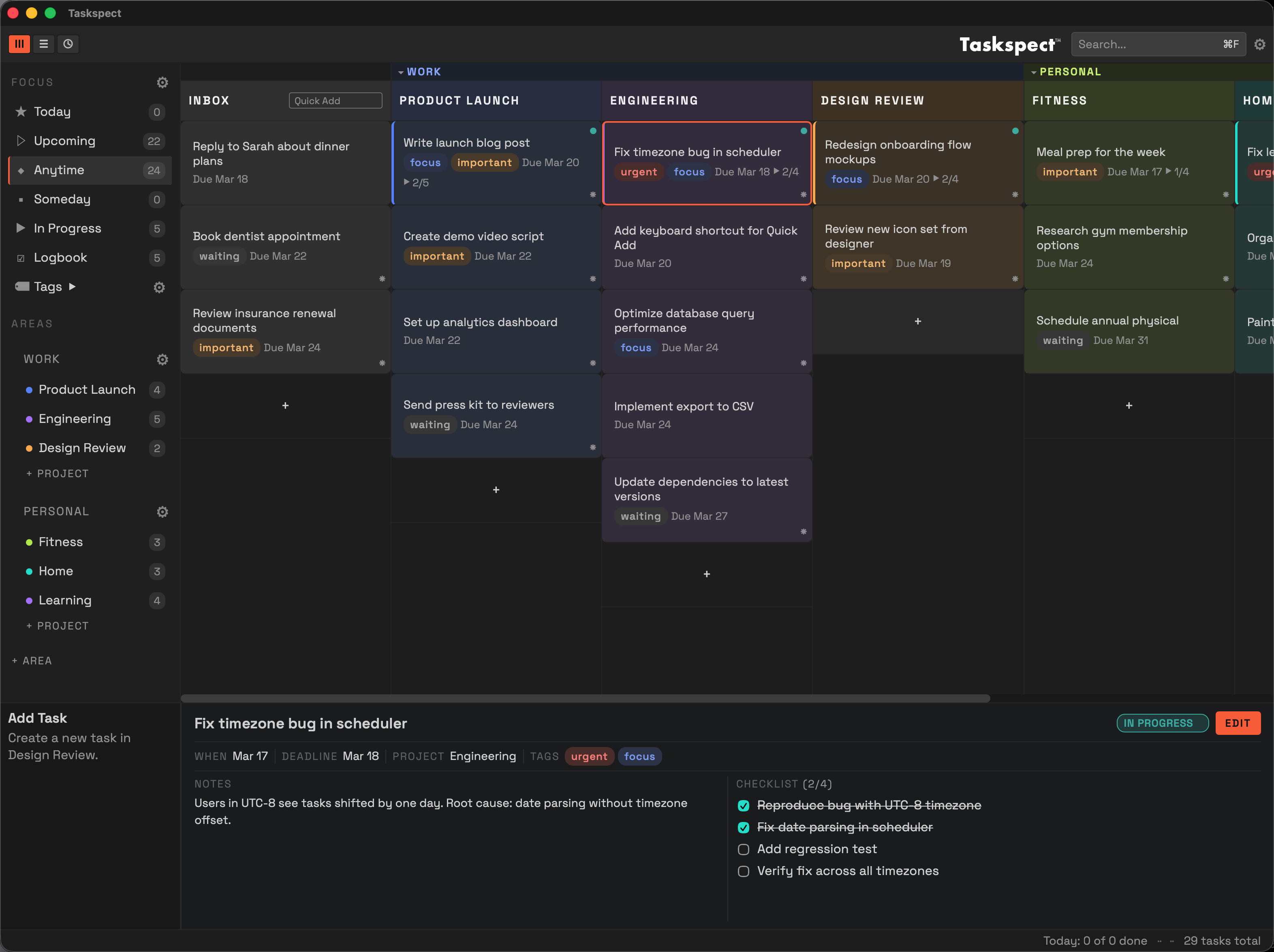
Task View with projects as columns and task cards showing metadata
Working with Task Cards
- Click a task card to open the detail panel for editing
- Drag a task card between columns to move it to a different project
- Right-click a task card for quick actions: move to Today, change project, start/complete/delete
- Arrow keys — Press ↑ ↓ to navigate between tasks, ← → to move between columns
- Use the Quick Add input in the Inbox column header to rapidly capture new tasks
- Expand a task's checklist by clicking the checklist count on the card
Column Management
- Drag column headers to reorder projects
- Drag the column edge to resize; double-click to reset width
- Toggle Inbox visibility with ⌘⇧I or via View > Toggle Inbox
- Hide empty columns automatically via Settings > Task View > Hide Empty Columns
Timeline View
Timeline View displays tasks as horizontal blocks on a calendar grid, organized by project. It provides a Gantt-style overview of your schedule.
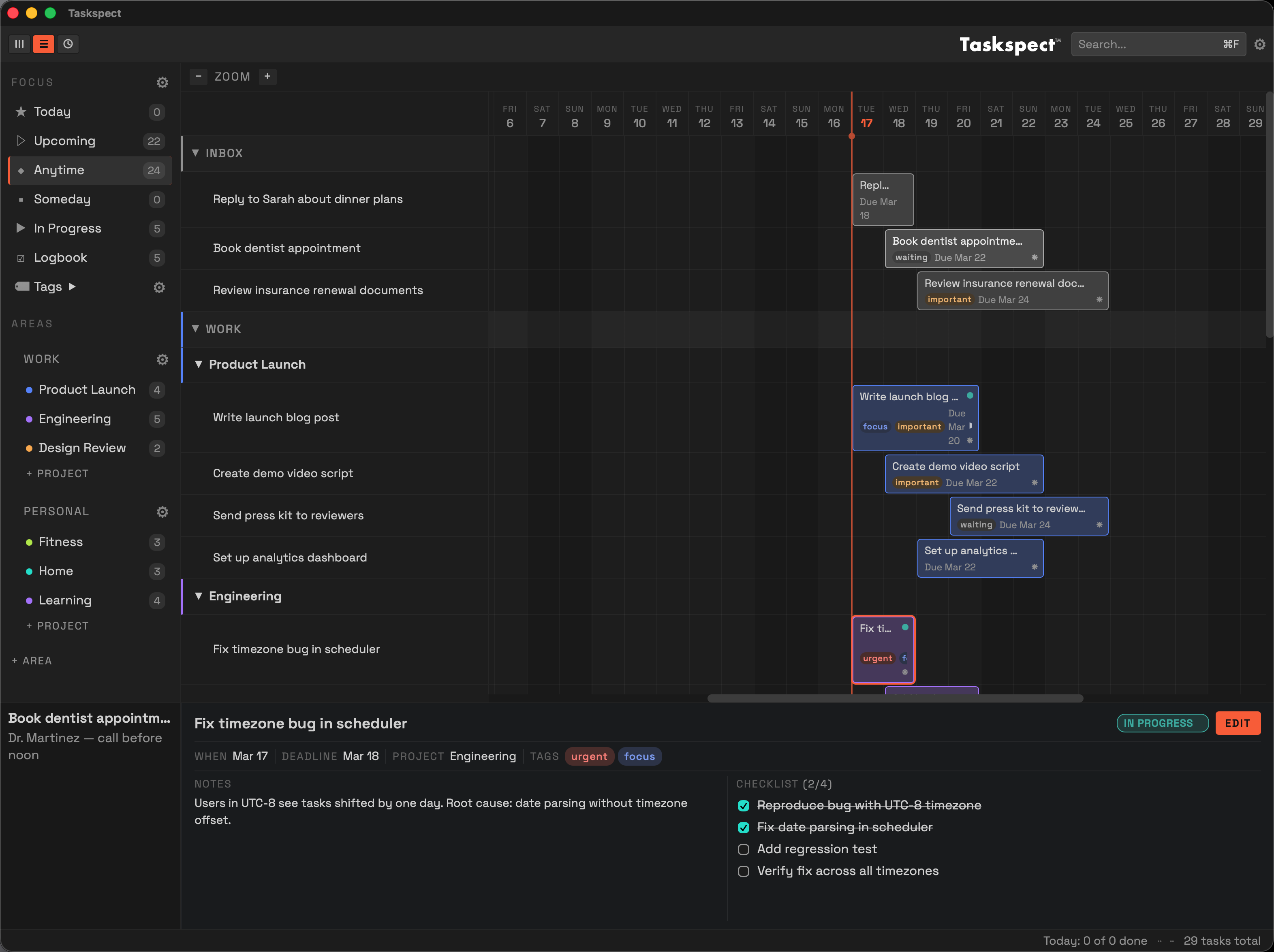
Timeline View showing tasks as draggable blocks on a date grid
Interacting with Timeline Blocks
- Click a block to open the detail panel
- Drag the body of a block left or right to reschedule (moves both start and end dates)
- Drag the edges of a block to resize and adjust start/end dates independently
- Press ← or → to nudge a selected task by one day
- Use the Zoom controls (⌘+ / ⌘–) to adjust the time scale
Navigation
- The orange playhead marks today's date
- Scroll horizontally to navigate through time
- Collapse or expand areas and projects by clicking their headers in the label panel
- Drag the label panel edge to resize the project name column
Timebox View
Timebox View is a day planner with 30-minute time slots. Use it to plan your day by scheduling tasks into specific hours.
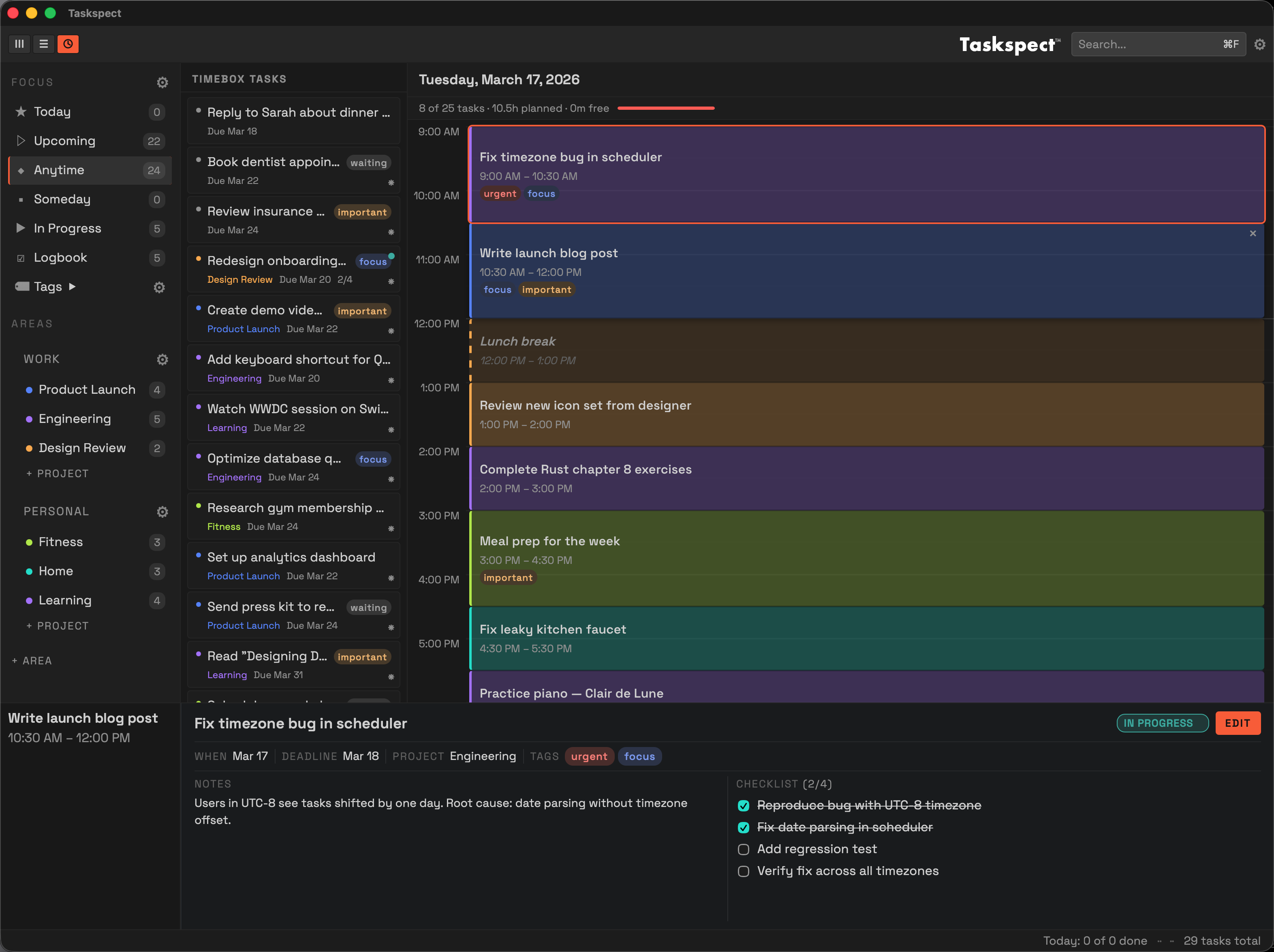
Timebox View with task list on the left and hourly schedule on the right
Task List (Left Side)
The left side shows your unscheduled tasks, organized by date group:
- Inbox — Tasks in your Inbox (always visible regardless of filter)
- Overdue — Tasks past their deadline (shown in red)
- Today — Tasks scheduled for today
- Tomorrow, This Week, Later This Month — Upcoming tasks grouped by timeframe
- Someday — Tasks with no dates
Drag the right edge of the task list to resize it. Double-click to reset the width.
Scheduling Tasks
- Drag a task from the left sidebar onto a time slot on the right to schedule it
- Tasks stay in the left list after scheduling — you can drag the same task to multiple time slots throughout the day
- Drag a scheduled block to move it to a different time
- Resize a block by dragging its top or bottom edge to adjust duration
- Double-click an empty slot to create a non-task time block (e.g., Lunch, Meeting)
- Click the × button on a block to remove it from the schedule
- When a task is completed or cancelled, its scheduled blocks are automatically removed
Time Blocks
Time blocks are schedule entries that aren't tied to a specific task. Use them for recurring activities like lunch breaks, commute time, or meetings. Double-click a time block's title to rename it, and click its color dot to cycle through colors.
Detail Panel
Click any task to open the detail panel at the bottom of the screen. The panel lets you edit all task properties:

Detail panel showing task properties, notes, and checklist
- Title — Click to edit the task name
- Status — Open, In Progress, Paused, Completed, or Cancelled
- When — Schedule for Today, a specific date, or Someday. Tasks appear in the Today filter when their When date arrives and stay there until completed or rescheduled.
- Deadline — Set a due date. Tasks past their deadline appear in the Overdue filter.
- Project — Reassign to a different project
- Tags — Add color-coded labels for categorization
- Notes — Add freeform text notes
- Checklist — Add subtasks and track completion
Press Esc to close the detail panel. If you have unsaved changes, you'll be prompted to save or discard them. Press Delete or Backspace to delete the selected task (undoable with ⌘Z).
Task Lifecycle
Every task has a status that tracks its progress. You can change status through the detail panel or the context menu.
Statuses
- Open — The default state for new tasks
- In Progress — Work has started (shown with a colored dot indicator)
- Paused — Temporarily on hold (shown with a pause icon)
- Completed — Done. Moves to the Logbook filter
- Cancelled — Dropped. Also moves to the Logbook
Changing Status
There are three ways to change a task's status:
- Detail panel: Click a task to open it, then use the status dropdown to select a new status
- Context menu: Right-click any task card for quick status actions:
- Start — Set to In Progress
- Pause / Resume — Toggle between Paused and In Progress
- Complete — Mark as done
- Cancel — Cancel this task
- Reopen — Set a completed or cancelled task back to Open
- Keyboard shortcuts: When a task is selected, press S (start), P (pause), C (complete), X (cancel), or O (reopen)
Context Menu
Right-click any task card in any view to access quick actions:
- Move to Today / Remove from Today — Schedule or unschedule the task for today
- Status actions — Start, Pause, Complete, Cancel, or Reopen
- Move to Project — Reassign the task to a different project
- Delete — Permanently remove the task
Drag and Drop
Drag and drop works consistently across all views with orange visual feedback:
- Task View: Drag cards between columns to change projects. Drag column headers to reorder.
- Timeline View: Drag blocks to reschedule. Drag between rows to change projects. Drag edges to resize.
- Timebox View: Drag tasks from the sidebar to schedule. Drag the same task to multiple time slots. Drag blocks to reschedule. Drag edges to resize.
- Tags: Drag a tag from the sidebar onto a task card in any view to apply it.
- Sidebar: Drag areas and projects to reorder them.
Areas & Projects
Tasks are organized in a hierarchy: Areas contain Projects, and Projects contain Tasks.
Areas
Areas represent broad categories of responsibility (e.g., Work, Personal, Health). Create a new area with ⌘⌥N. Each area has a color that tints its project columns. Edit an area by hovering over it in the sidebar and clicking the gear icon.
Projects
Projects are collections of related tasks within an area. Create a new project with ⌘⇧N. Projects appear as columns in Task View and rows in Timeline View. Edit a project by hovering over it in the sidebar and clicking the gear icon.
Inbox
The Inbox is a special project that captures tasks not yet assigned to a project. Use the Quick Add bar in the Inbox column header or ⌘N to quickly capture tasks. Inbox tasks are always visible in all views regardless of the active filter.
Search
Press ⌘F or click the search box to filter tasks by name across all projects. The search works in all three views and matches against task titles and tag names. Press Esc to clear the search.
Import & Export
Import CSV
Import tasks from a CSV file via File > Import > Import CSV. The import wizard lets you map CSV columns to task fields, preview the data, and choose a target project. Auto-detection attempts to match common column names. Dates must be in YYYY-MM-DD format.
Export CSV
Export all your data to CSV via File > Export > Export CSV. The export includes all tasks across all projects with their properties, tags, and checklist items.
Settings
Open Settings with ⌘, or click the gear icon in the top-right corner. Settings are organized into tabs:
Task View
- Display: Toggle visibility of due dates, when dates, tags, checklists, notes indicators, and status labels on task cards
- Grouping: Group columns by area, hide empty columns
Timeline View
- Display: Same display options for timeline blocks
- Visibility: Hide Timeline View from the view switcher and Tab cycling
Timebox View
- Display: Toggle visibility of due dates, when dates, tags, checklists, notes indicators, and status labels on timebox task cards
- Schedule: Configure visible hours (start/end) for the day planner
- Visibility: Hide Timebox View from the view switcher and Tab cycling
Appearance
- Display: Toggle between dark and light themes (or auto to follow system), adjust UI scale, set Inbox color
- Notifications: Configure dock badge count (Today, Inbox, Overdue, or combinations)
Keyboard Shortcuts
Press ⌘⇧? to open the keyboard shortcuts reference at any time.

Keyboard shortcuts reference modal
| Shortcut | Action |
|---|---|
| Tab | Cycle between views |
| ⌘ 1 / 2 / 3 | Switch to Task / Timeline / Timebox View |
| ⌘ , | Open Settings |
| ⌘ \ | Toggle sidebar |
| ⌘ ⇧ I | Toggle Inbox |
| ⌘ N | New task |
| ⌘ ⇧ N | New project |
| ⌘ ⌥ N | New area |
| ⌘ Z | Undo |
| ⌘ ⇧ Z | Redo |
| ⌘ T | Move selected task to Today |
| ↑ ↓ | Navigate between tasks |
| ← → | Navigate columns (Task View) or nudge task ±1 day (Timeline) |
| ⌘ + / – | Zoom in / out |
| ⌘ 0 | Reset zoom |
| ⌘ F | Search |
| ⌘ ⇧ ? | Keyboard shortcuts |
| Delete | Delete selected task or timeblock |
| Esc | Close panel / dismiss |
Status Shortcuts
When a task is selected (detail panel open), press these keys to change its status:
| Key | Action |
|---|---|
| S | Start (In Progress) |
| P | Pause |
| C | Complete |
| X | Cancel |
| O | Reopen |